Monday, September 4, 2017

Where to Meet Robo4J in 2017 - a Conference List

Hi all!

Sorry about the radio silence. We've been busy prepping for the upcoming conferences!

Here is a list of conferences where there will be a Robo4J talk the next few months:

Date Conference Location
2017-09-14 NetBeans Days München 2017 Munich / Germany
2017-09-30 JavaOne 4 Kids 2017 San Francisco / USA
2017-10-03 JavaOne 2017 San Francisco / USA
2017-11-06 Devoxx 2017 Antwerp / Belgium

We are looking forward to seeing you there!

/The Robo4J team

Sunday, July 9, 2017

Magnetometer Calibration

Since there is a fair bit of a pain for me to get pictures into the blogs using my go-to blogging tool, I've posted a blog on my personal blog about how to calibrate magnetometers in Robo4J:

http://hirt.se/blog/?p=796

Hope this helps!

/M

Saturday, May 20, 2017

Be ready and prepare Raspberry Pi for Java 9

   Java 9 is coming soon with many new features. Aside of continued discussion about Project Jigsaw impact, it's time to get prepared.
This article helps you to prepare your RaspberryPi environment with multiple installed JDKs.
Whole process is quite straight forward: 

The first step is to download the last stable release of java jdk-9. 
In the article we use the most recent build: jdk-9+170


You can download JDK directly into your RapsberryPi or your local machine and then by using $scp command upload it to your RaspberryPi machine
$scp ./jdk-9-ea+170_linux-arm32-vfp-hflt_bin.tar.gz pi@<raspberrypi_ip>/home/pi

The next step is to login into your RaspberryPi machine  
$ssh pi@<raspberry_ip>

To unzip the downloaded JDK file execute following command:
$ sudo tar zxvf jdk-9-ea+170_linux-arm32-vfp-hflt_bin.tar.gz -C /opt

The command extracts the jdk-9 into the /opt folder

Now link java and javac with newly available JDK
$ sudo update-alternatives --install /usr/bin/javac javac /opt/jdk-9/bin/javac 1
$ sudo update-alternatives --install /usr/bin/java java /opt/jdk-9/bin/java 1

by using following command we select the jdk-9 available for us under the number 1
$ sudo update-alternatives --config javac
$ sudo update-alternatives --config java

at the end we verify our current java version by:
$ java -version
java version "9-ea"
Java(TM) SE Runtime Environment (build 9-ea+170)
Java HotSpot(TM) Client VM (build 9-ea+170, mixed mode)

$ javac -version
javac 9-ea


Congratulation your RaspberryPi is now running on Java 9 and you can switch between JDKs.

Monday, April 17, 2017

Robo4J and the Java Flight Recorder (Laser Scanner Calibration)

The Java Flight Recorder (JFR) is a powerful feature in the Oracle JDK. It allows you to record information about the Java runtime, and the application running in the Java runtime. When designing robots, it can be an invaluable tool. Robo4J has some integration with the Java Flight Recorder out of the box.

In this blog, I will use the JFR integration to simplify the calibration necessary to make use of the LaserScanner class.

Calibrating Servos

Step one is to calibrate whatever servos are involved in doing a scan. I have a pan servo and a tilt servo. Only the pan servo is actually involved in the LaserScanner class - it provides 2D scans. That said, I need for the tilt servo to be calibrated properly too, if nothing else to ensure that I get level scans. To calibrate the servos, see my Servo Calibration blog.

First Configuration

The second step is to configure reasonable defaults for the configuration file for the LaserScannerExample ($ROBO4J_HOME/robo4j-units-rpi/src/examples/resources/lidarexample.xml). The most important part is to copy the values from your calibrated pan servo in the first step to the laserscanner.servo entry. Also, ensure that you set the minimum acquisition time depending on the version of the Lidar Lite you have. The v1 requires at least 20 ms. The v2 and later should be okay with 2ms. For the rest of the settings, leave the defaults for now.

Doing Flight Recordings

The next step is to run the a few scans using the LaserScannerExample and look at the results.
First source the envionment variables:
source scripts/rpi/environment.sh
Next run the LaserScannerExample with the flight recorder enabled. We will connect over JMX, so you need to open the appropriate ports, for example:
sudo java -XX:+UnlockCommercialFeatures -XX:+FlightRecorder -Dcom.sun.management.jmxremote.port=7091 -Dcom.sun.management.jmxremote.rmi.port=7091 -Dcom.sun.management.jmxremote.authenticate=false -Dcom.sun.management.jmxremote.ssl=false -Djava.rmi.server.hostname=coffewlan -cp $ROBO4J_PATH com.robo4j.units.rpi.lidarlite.LaserScannerExample
Next, get the robo4j-tools repo for Robo4J, and follow the instructions to start Java Mission Control (JMC) with the Robo4J plug-in.

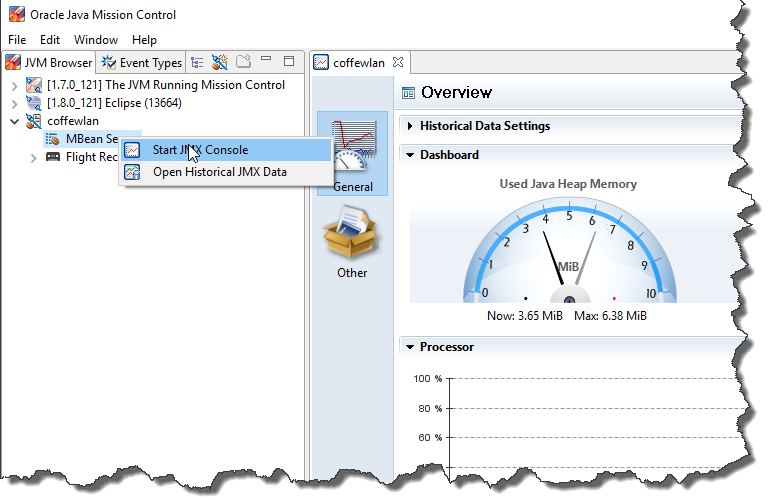
Create a connection to your RaspberryPi running the example. You can connect with the JMX console to see that the connection works.


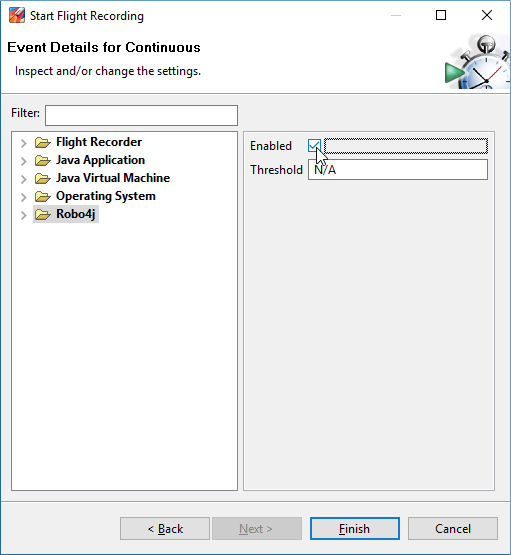
Next create a recording from Java Mission Control by right clicking on your connection and select “Start Flight Recording". You can use any recording template, just make sure to enable the Robo4J specific events in the last page of the wizard.


Click finish to start the recording. Once done, it will be downloaded to JMC automatically. Now, since you are using the Robo4J plug-in, the scans will be visualized for you. Open the Robo4J tab group, and select a scan to take a look at it.

If you suspect your servo is travelling too fast or slow (multiple sample points in the end with the same reading(s), weird artifacts in the end of a scan), adjust the angularSpeed. If you feel the laser do not get enough time to acquire, increase the minAcquisition time. Also, since we move the servo whilst acquiring, you may need to compensate the angular speed. Since I was lazy and didn’t have time to spend looking for a perfect physical model, there is a trim parameter to compensate (to make the left-to-right, and right-to-left scans align).

Below is a picture of a couple of individual scans on my robot without trim (simply shift- or control-click a few scans to render them simultaneously):

And the picture below is with trim set to 5.5:

Simply keep doing recordings and bisect your way to a proper trim value for your particular setup.

Summary

This blog showed that Robo4J has built in support for the Java Flight Recorder, and that the built in support is quite useful to calibrate the laser range finder (the LaserScanner class). It is also quite useful for trying out different algorithms for feature extraction and mapping using pre-existing data, but that is for another night and another blog.

Servo Calibration in Robo4J

In this blog I will show how to do simple servo calibration in Robo4J. This is, for example, important to get the laser rangefinder to work properly.

First of all we will need to configure two servo units. In our case we will use an Adafruit 16CH 12-bit PWM generator, but any RoboUnit taking a float value (normally normalized, between -1 and 1) can be used.

First sync your robo4j git repo and build everything:
git pull
./gradlew build
Next set up a classpath variable you can use. Normally just running the environment.sh script for the RaspberryPi will be fine. If not, edit the script to fit your setup.
source scripts/rpi/environment.sh
First off, copy the settings file for the calibration test. It is located in $ROBO4J_HOME/robo4j-units-rpi/src/examples/resources/calibration.xml.
For example:
cp $ROBO4J_HOME/robo4j-units-rpi/src/examples/resources/calibration.xml /tmp
Next edit the file to suit your setup. If you are about to calibrate your laser scanner, make sure that your pan servo is represented in the file. Also set all trim values to 0, and any inverted values to false. Next run the little calibration utility:
sudo java -cp $ROBO4J_PATH com.robo4j.units.rpi.pwm.CalibrationUtility /tmp/calibration.xml
You should now see something like this:

State before start:
RoboSystem state Uninitialized
================================================
  pan Initialized
  tilt Initialized

State after start:
RoboSystem state Started
================================================
  pan Started
  tilt Started


Type the servo to control and how much to move the servo, between -1 and 1. For example:
pan -1.0
Type q and enter to quit!

This is pretty self explanatory. Simply refer to the servo by name, and then set the value for it. If the servo name is “pan” in the configuration file, “pan -1.0” followed by enter will move the servo to one extreme.

For pan servos for the laser rangefinder -1 should be full left, and 1 full right. Ensure that this is the case, if not, change the inverted value for the servo configuration in the settings file. Next set the servo to 0. If the servo is off center when set to 0, carefully unscrew the servo arm without changing the position of the servo arm. Then re-attach it as close to centered as possible.

For the final tuning, use the trim value in the servo configuration to ensure that the servo is properly centered. If you are going to use the servo for panning a laser, also make note of how many degrees rotation of the arm a move from the center (0) to an extreme (-1 or 1) corresponds to.

That’s it! When you are coding/setting up your robot, simply use the settings in you calibration settings file.

Summary

This blog showed how to go about calibrating a servo in Robo4J using the very simple CalibrationUtility. This is an especially important step when the servo will be used together with the LaserScanner, something I will talk about in a future post.

Monday, April 10, 2017

5 Things I discovered about IoT at Javaland


Last month I presented the Robo4J framework at InnovationLab, during the Javaland conference (28-30.03.2017). It was really an amazing experience, not only because of the nice conference venue but also because of all the things I’ve noticed during hours of talks. Robo4J had a small stand there and it was possible to show a couple of examples live. 

The first thing I realised pretty quickly, and appreciated, was the selection of the examples I had taken with me. I packed a Lego Mindstorm Education set with Lego Sensors, Motors, RaspberryPIs with external batteries and some LCDs and sensors (all from the Adafruid company). The Lego is for kids and pretty sturdy. Adafruid provides really good quality, and is robust enough too. All has been working perfectly over the whole conference without any problems.
The second important thing was my DNS/DHCP server configured on one of my RaspberryPis, providing a stable WiFi network. It was crucial because without it none of the examples would fully work. 

The third thing I appreciated is about the interest of the people attending. Most of the people seeing all the unconnected hardware elements, laying on the table, asked about it. Maybe they didn’t believe it could work. Sure, Java and Hardware is not an easy thing; it takes some effort to make it work. I disconnected all components because I wanted to show how easy it is to build a working system by using the Robo4J framework. We then spent some time connecting all pieces together and writing some simple Robo4J applications. In the end we ran the application and it was working. My impression was that they were surprised based on the feedback I’ve received. They were impressed how easy it can be to use Java and Hardware together. 

When the people saw what Robo4J can do for IoT development it turned into a discussion about its usage. I warned everyone that Robo4J is still currently in an alpha version. Even so there are already a lot of usages where people may use Robo4J. A lot of attendees asked about how to setup the Lego Mindstorm they've bought for their kids. They never used Java there because it was not so easy to setup all together. As a consequence of those discussions we have prepared two helpful blog posts.
The fifth discovery I did is that people try hard to use RaspberryPi together with Python. All pre-prepared examples are very easy to run for the users, but than sooner or later they are struggling about how to continue with the development. I met a couple of people from Robotics startups, and they told me that they would highly appreciate to have the possibility employ Java. Aside from static typing, Java has a bigger and more active community. On the internet there are, in my opinion, much more useful libraries. Java also provides you better control over your application runtime and much more.

Summary
Javaland was extremely helpful for Robo4J. We got really nice feedback on the framework itself. There is still much work to be done before we release the first version. We are looking forward to implementing your feedback in Robo4J.


Miro, for the Robo4J Team

Monday, April 3, 2017

How to Prepare Lego EV3 for Robo4J (install leJOS)

First download the LeJOS related files:

1. Download leJOS_EV3_0.9.1-beta.tar.gz
2. Download Java for Lego Mindstorm EV3 ejdk-8-fcs-b132-linux-arm-sflt-03_mar_2014.tar.gz

Next install LeJOS on the SD card:

1. According to the manual, you should use an SD card bigger than 2GB
2. Format the SD card (on Mac you can use SDFormatter)
3. Unpack leJOS_EV3_0.9.1-beta.tar.gz
4. Go to the unpacked folder
5. Copy the lejosimage.zip file to the SD Card
6. Unpack the lejosimage.zip file
7. Move all the unpacked content to the root of the SD card
8. Copy ejdk-8-fcs-b132-linux-arm-sflt-03_mar_2014.tar.gz to the root of the SD card
9. Put the SD card back into the EV3 Lego brick
10. Start the Lego brick

We do recommend to setup WiFi on your lego Brick. Such a setup allows you to use an ssh client to connect to the brick and the scp utility to upload files. The default password is not set (any characters sequence will be accepted).